How to Disable the Xbox Share Button for GTA 6 on Xbox Series X|S
Stop accidental GTA 6 screenshots and clips in the middle of Vice City action by unmapping the center Xbox Share button in Xbox Accessories and turning off automatic game captures.
Direct Answer • Verified Nov 22, 2026
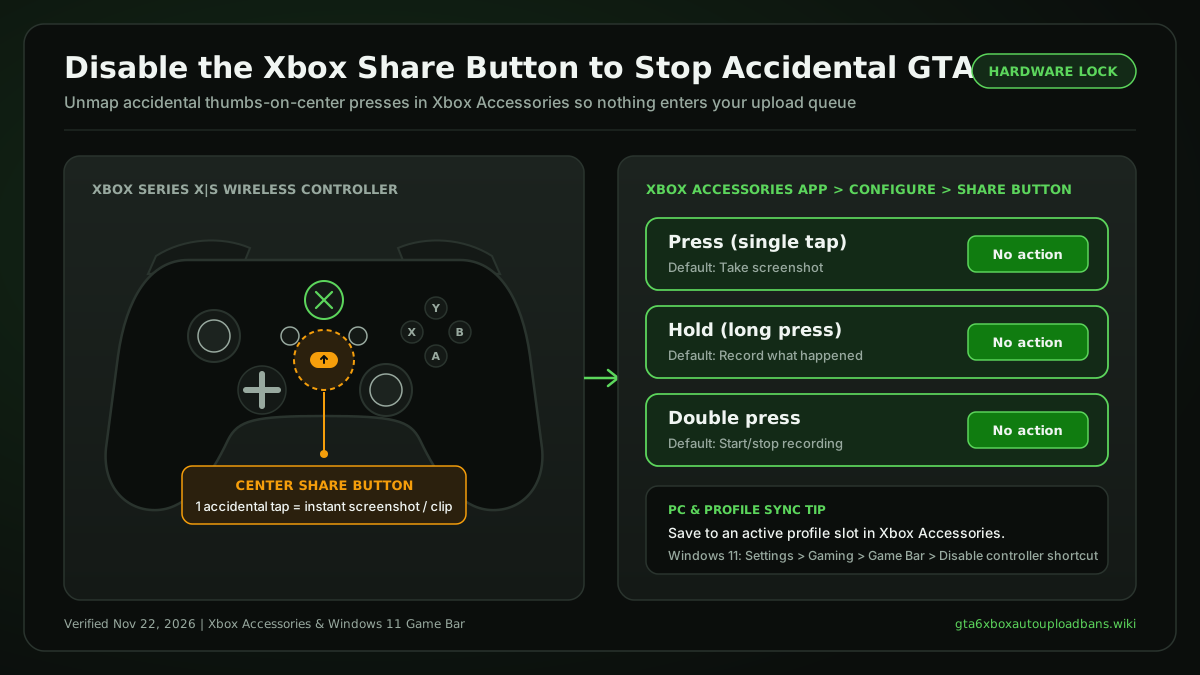
On Xbox Series X|S, open My games & apps > See all > Apps > Xbox Accessories > Configure > Share button, and set Press, Hold, and Double press to No action. Then open Settings > Preferences > Capture & share > Allow game captures and switch from Captures by me or games to Captures by me or Don't capture.
Why You Should Disable the Xbox Share Button for GTA 6
If you want to disable Xbox Share button triggers before exploring Leonida, you are removing the single most common source of accidental captures on Xbox Series X|S. On modern Xbox Wireless Controllers, the dedicated Xbox Share button sits dead center between the View button (which opens your Grand Theft Auto VI map) and the Menu button (pause and settings).
A single quick press snaps a screenshot; holding it records a 30-second video clip. During high-speed Vice City chases, camera switches, or frantic map checks, brushing that center key takes half a second—and if default uploads are active or ever reset after a console firmware update, one unintended beach or club screenshot can trigger GTA 6 Xbox auto upload bans.
Even after you complete our Xbox auto-upload lockdown and cloud cleanup guide, unmapping the controller Share button gives you a permanent hardware safeguard and keeps stray screenshots from cluttering your console SSD.
How to Disable the Xbox Share Button on Xbox Series X|S
Microsoft lets you disable Xbox Share button inputs natively inside the pre-installed Xbox Accessories app on every Xbox Series X|S console—no third-party software or controller mods required:
- Turn on the Xbox Wireless Controller you use for Grand Theft Auto VI and press the Xbox button to open the Guide.
- Go to My games & apps > See all > Apps > Xbox Accessories.
- Highlight your connected controller and select Configure.
- Select New profile (or highlight an existing profile and choose Edit), and give it a clear name such as
GTA 6 Safe. - Scroll to the Share button tab. You will see three separate trigger slots: Press, Hold, and Double press.
- Change every trigger currently set to
Take screenshotorRecord what happenedto No action. - Press B to save, then make sure the profile is assigned to Slot 1 (or your active controller slot) so it stays active whenever you launch GTA 6.
Best Safe Actions to Remap Instead of "No Action"
If you prefer not to leave the center button unused while preventing GTA 6 Xbox auto upload bans, you can reassign Press or Hold inside Xbox Accessories to a zero-risk console utility:
- Mute TV or Volume up / Volume down (requires HDMI-CEC enabled on your TV)
- Night mode toggle for dim living-room sessions
- Accessibility / Quick settings shortcuts that never touch the capture pipeline
Standard Series X|S Controller vs. Elite Series 2
- Standard Xbox Wireless Controller (Series X|S): Includes the center physical Share button and supports unmapping single press, press-and-hold, and double press inside Xbox Accessories.
- Xbox Elite Wireless Controller Series 2: Has no center Share button on the faceplate, so accidental center-button clicks are impossible—however, open Xbox Accessories and confirm none of your rear paddles or Shift-key bindings are assigned to
Take screenshotorRecord what happened.
Second Defense: Turn Off Automatic Game Captures ("Captures by Games")
Disabling the physical button stops accidental thumb presses, but some Xbox titles also auto-record clips when achievements or scripted events fire. To stop your Xbox from creating surprise recordings on its own while playing GTA 6:
- Press the Xbox button and open Profile & system > Settings > Preferences > Capture & share.
- Select Allow game captures.
- Switch from
Captures by me or gamesto Captures by me (if you still want manual Guide recording) or Don't capture (if you want zero screenshots or clips saved during GTA 6 sessions). - Directly underneath, confirm Automatically upload > To the Xbox network is set to Don't upload and To OneDrive is turned off.
Can You Still Record GTA 6 Manually After Disabling the Share Button?
Yes. When you disable Xbox Share button shortcuts in Xbox Accessories, only the physical key is turned off. Whenever you intentionally want a clean stunt clip or landscape screenshot, simply press the Xbox button, tap RB to Capture & share, and pick Take screenshot or Record what happened—your capture saves strictly locally to your SSD or NTFS USB 3.0 drive with zero cloud scanning risk.
Complete Your GTA 6 Xbox Ban Protection
Pair a disabled Share button with local-only capture storage to close every gap behind GTA 6 Xbox auto upload bans:
- Clean out existing cloud clips and set up NTFS USB 3.0 recording with our Xbox auto-upload lockdown and cloud cleanup guide.
- Verify every toggle in 15 seconds with our GTA 6 Xbox Ban Appeal Template & Capture Safety Checker.
- Already dealing with a 48-hour clip suspension? Read our GTA 6 Xbox ban appeal and 8-strike guide or return to the GTA 6 Xbox Auto Upload Bans main fix.
Player Reports (0)
Share which console setting or GTA 6 clip triggered a warning, or whether your Case Review succeeded. Plain text only; moderated before publishing.