How to Turn Off Xbox Auto Upload, Purge Cloud Clips & Export GTA 6 via USB
Complete GTA 6 Xbox Series X|S capture lockdown: disable Xbox network and OneDrive auto-upload, block automatic game captures, purge existing cloud clips across console, app, and OneDrive, and export cleanly via NTFS USB 3.0.
Direct Answer • Verified Nov 22, 2026
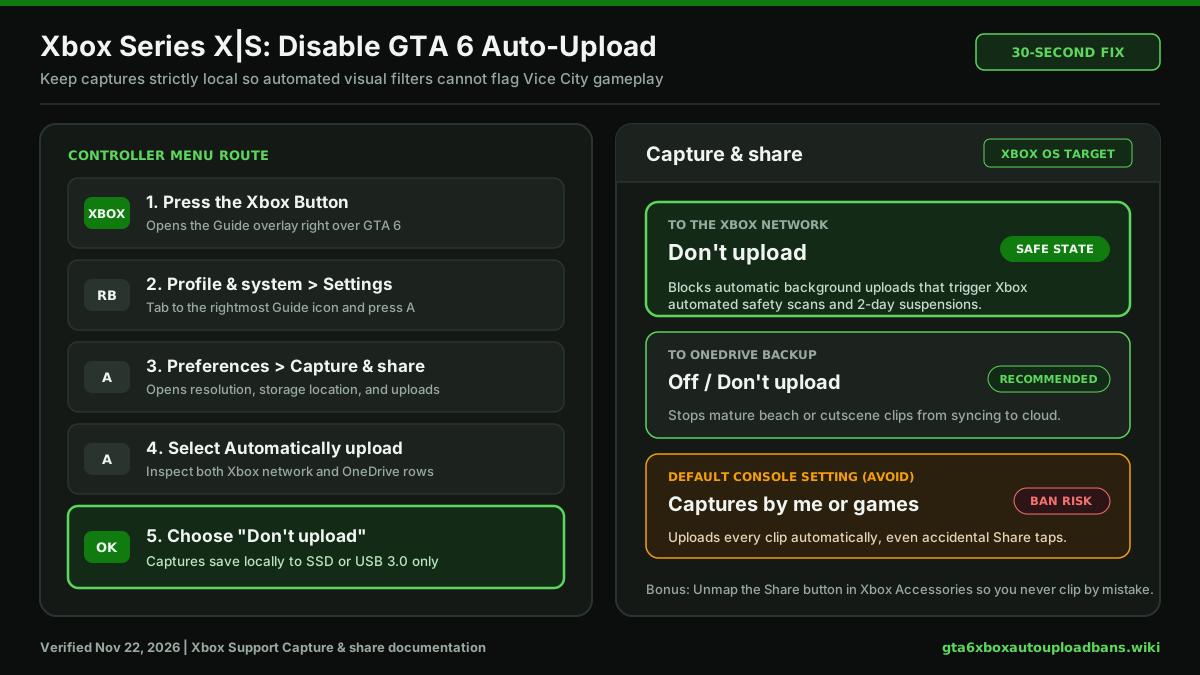
Press Xbox > Profile & system > Settings > Preferences > Capture & share > Automatically upload > set "To the Xbox network" to Don't upload (and turn off "To OneDrive"). Then switch Allow game captures to Captures by me or Don't capture, and purge older GTA 6 clips under Captures > On the Xbox network.
Stop Both Automatic Uploads and Automatic Game Captures
If you already flipped the quick toggle on our GTA 6 Xbox Auto Upload Bans main fix, this deeper lockdown guide covers everything else that can quietly send Grand Theft Auto VI footage to Microsoft's scanners: secondary OneDrive sync, automatic game-triggered recordings, clips that already uploaded before you changed the setting, and safe offline export via USB 3.0.
To fully turn off auto upload on Xbox Series X|S and block surprise recordings in one pass:
- Press the Xbox button and open Profile & system > Settings > Preferences > Capture & share.
- Open Automatically upload: set To the Xbox network to Don't upload, then turn To OneDrive off on the same screen so mature gameplay cannot back up to Microsoft cloud storage.
- Return to the Capture & share menu and select Allow game captures. Switch it from
Captures by me or gamesto Captures by me (blocks games from auto-recording clips behind your back) or Don't capture (disables console recording entirely while you play GTA 6).
Purge GTA 6 Clips Already Uploaded (Console, Xbox App & OneDrive)
Switching Automatically upload to Don't upload protects future recordings, but it does not erase files that already synced before you saw the warning. Because delayed moderation reviews can still flag clips sitting in cloud storage during Xbox's 90-day retention window, clear all three places:
1. Delete Cloud Clips on Your Xbox Series X|S Console
- Press the Xbox button and open My games & apps > See all > Apps > Captures (or Capture & share > Recent captures > Show all).
- Switch the top filter dropdown from On this Xbox console to On the Xbox network.
- Review every recent GTA 6 clip and screenshot—especially anything near beaches, nightlife clubs, or story cutscenes.
- Select any risky file and choose Delete > Delete from Xbox network. This removes only Microsoft's cloud copy while keeping your local SSD copy untouched.
2. Double-Check the Xbox Mobile App
Open the official Xbox app on iOS or Android and tap the My Library > Captures tab. Every item shown inside the mobile app lives on the Xbox network. If any GTA 6 beach or mature capture still appears there, tap it and delete the Xbox network copy immediately.
3. Clean Up OneDrive Backups (If Previously Enabled)
If you ever enabled Xbox-to-OneDrive capture sync, sign in to OneDrive on web or mobile, open My files > Videos > Xbox Game DVR (or Pictures > Screenshots), and remove sensitive GTA 6 files you do not want stored on Microsoft cloud servers.
High-Risk GTA 6 Locations & Scenes to Keep Strictly Local
Launch-week reports behind GTA 6 Xbox auto upload bans across r/xbox, VGC, GamesRadar, and Notebookcheck show Microsoft's automated visual scanner flags far more than explicit nudity. Keep captures offline whenever you are near:
- Vice City beaches and boardwalks: Routine daytime clips showing NPCs in swimsuits or bikinis triggered
u/sangobar's 28-second automated 2-day suspension. - Leonida nudist areas and nightlife clubs: Unedited open-world zones and club interiors carry the highest enforcement risk across both Xbox Network and PSN.
- Mature story cutscenes: Intimate or violent campaign sequences involving Jason and Lucia can trip automated safety filters even when recorded strictly for personal replay.
Important Trade-Off: Why New Clips Stop Appearing in the Xbox Phone App
Many players who turn off auto upload on Xbox are surprised when newly recorded clips stop showing up in the Xbox mobile app for quick phone downloads. That behavior is completely normal: the Xbox mobile app reads exclusively from On the Xbox network cloud storage, not directly from your console SSD.
You have two safe ways to move GTA 6 footage to your phone or PC without risking GTA 6 Xbox auto upload bans:
- Safest method (Zero network scan): Export offline to a USB 3.0 drive (details below).
- Selective manual upload (Safe scenes only): After verifying a clip contains only car stunts, racing, or scenery with zero swimwear, nudity, or mature cutscenes, open Captures > On this Xbox console, select that single file, and choose Upload to Xbox network manually.
Record & Export GTA 6 Safely via USB 3.0 Drive (Up to 1 Hour Locally)
Official Xbox Support lets you record directly to external USB storage without touching Microsoft's servers, and it unlocks longer local capture times (up to 1 hour per clip instead of short internal buffers):
- Required hardware: A USB 3.0 (or faster) flash drive or external SSD/HDD formatted on a PC as NTFS.
- Separate from game storage: Per Xbox requirements, a drive configured for media captures cannot be the same formatted drive used to install Xbox games.
- Console setup: Plug the NTFS USB 3.0 drive into your Xbox Series X|S, open Settings > Preferences > Capture & share > Capture location, and select your USB drive.
- Verify upload stays off: Confirm Automatically upload remains set to Don't upload, then unplug the drive whenever you want to transfer clips to a PC or phone adapter for TikTok, Discord, or YouTube.
Next Step: Stop Accidental Button Presses & Check Your Standing
Even with uploads disabled, brushing the center controller button can still trigger stray recordings. Follow our guide to disable the Xbox Share button for GTA 6, run the GTA 6 Xbox Ban Appeal Template & Capture Safety Checker, or read our GTA 6 Xbox ban appeal and 8-strike guide if you already received a suspension notice.
Player Reports (0)
Share which console setting or GTA 6 clip triggered a warning, or whether your Case Review succeeded. Plain text only; moderated before publishing.